
Managing your tax affairs rarely falls to just one person. You might have an accountant filing your returns, a bookkeeper keeping your records in order, or a team member who helps you stay on top of things day to day. HMRC’s Government Gateway is built to accommodate this, but the different types of access available can be confusing if you’ve never had to think about them before.
This post explains the three main ways access can be granted, what each one allows, and how to add a team member to your account yourself. It’s also worth reading if you want to make sure the right people have access, and the wrong people don’t.The Three Types of Access Worth Understanding
1. Main Agent
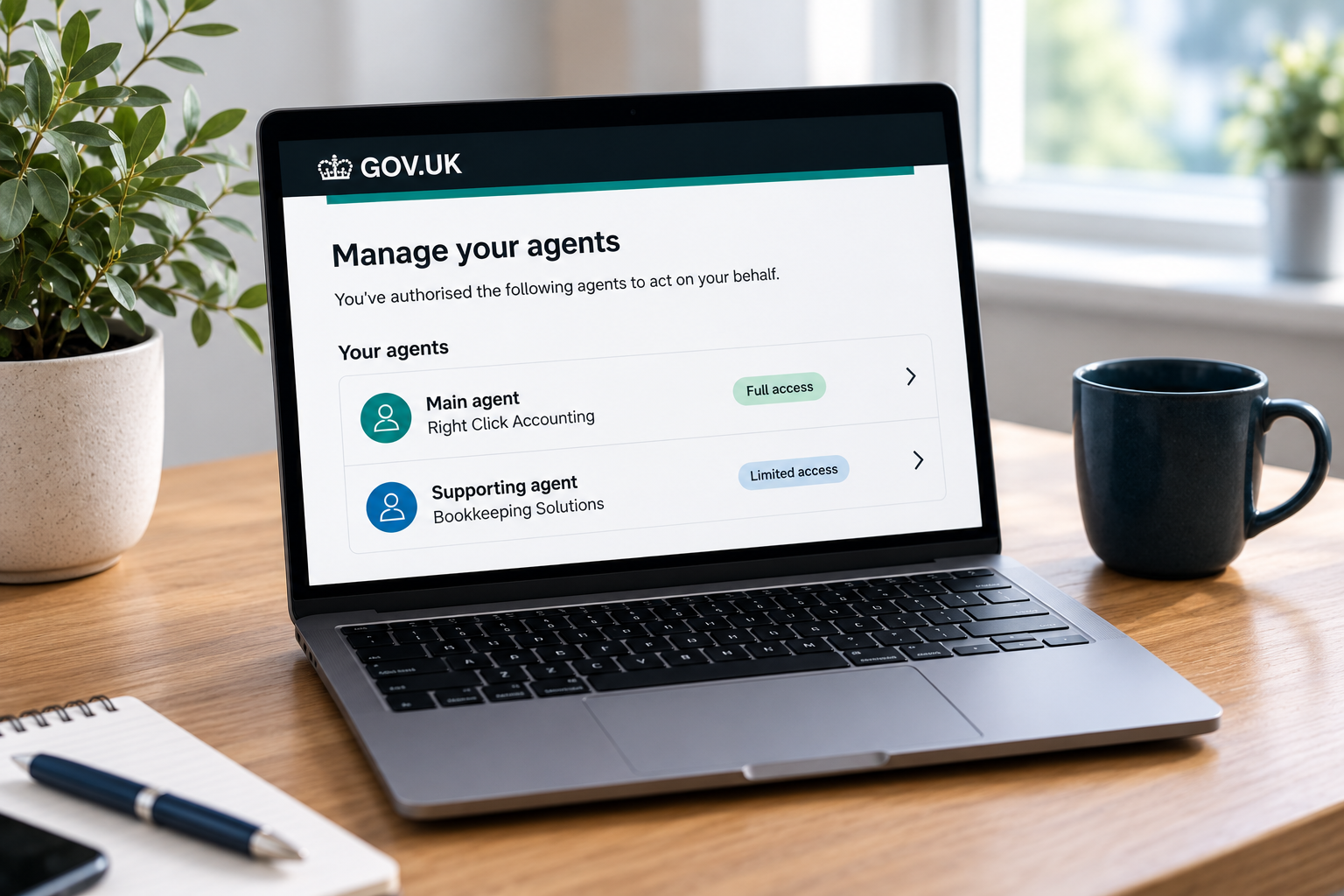
A main agent is typically your accountant, bookkeeper or tax adviser (aka. the professional who fully manages your tax affairs). They can do almost everything you can do on your account, with two exceptions: they cannot set up a direct debit on your behalf, and they cannot change your HMRC communication preferences.
Main agent access is requested by the tax professional, not added by you. They will have their own process for setting this up and will be able to tell you what’s involved.2. Supporting Agent
A supporting agent role was introduced alongside the Making Tax Digital for Income Tax regulations. It allows a second professional (perhaps a bookkeeper, specialist adviser or a different firm) to have access alongside your main agent.
A supporting agent has more limited access than a main agent. HMRC’s guidance sets out exactly what each can do and you can find the full comparison table at gov.uk/guidance/choose-agents-for-making-tax-digital-for-income-tax.
Like main agent access, this is arranged through the professional, not by you directly.
3. Team Member
Team member access is different to the above, as rather than granting access to a professional acting on your behalf, it allows you to bring in someone (a colleague, an employee or trusted family member) to help you manage your own account. They are there to support you, not to act as an agent.
This type of access you can set up yourself, directly through your Government Gateway, without needing to go through a formal agent authorisation process.
When Team Member Access Makes Sense
There are a few situations where adding a team member is the most practical option. In all of these cases, you stay in control. You decide who gets access, what level of access they have and when it is removed.
(This route isn’t advised by HMRC but is useful for cross-checking liabilities, spotting discrepancies or supporting you with day-to-day queries.)
A director or business partner needs oversight where more than one person in the business should be able to see what’s owed and when. A family member or Power of Attorney needs to monitor tax liability details.How to Add a Team Member: Part One
Part One creates the team member invitation.
Step 1. Log in to HMRC Online Services using your Government Gateway credentials.
Step 2. Look above the ‘Business Tax Summary’ section and click ‘Manage Account’.
Step 3. Scroll down to ‘Account Access’ and click ‘Add or delete a team member’.
Step 4. Click ‘Add a team member’, enter the name and email address of the person you are inviting.
Step 5. When asked about their role, select the most appropriate option. Administrator gives the broadest access. Standard and View only are more restricted. If you are unsure, check with the person you are adding.
Once submitted, two emails are generated automatically. The person you are adding will receive an invitation containing a Government Gateway number. You will receive a separate email with a temporary password for them.
Pass that temporary password on to the person you have invited, using a secure method. They will need both pieces of information (the Gateway number from their email and the temporary password from yours) to complete their side of the set-up.Once they have confirmed they are set up, you are ready to move on to Part Two.

How to Add a Team Member: Part Two
Part Two grants your new team member access to the individual taxes on your account. Complete this step only once they have confirmed their set-up is complete.
Step 6. Log back in to HMRC Online Services.
Step 7. Scroll down to ‘Account Access’ and click ‘Give a team member access to a tax, duty or scheme’.
Step 8. For each tax listed, click ‘Manage team members’.
Step 9. Either click ‘Select all team members’ or tick the individual team member you have just added.
Once those steps are complete, your team member will have access to the tax information on your account.
A Note on Your Own Access
Whatever arrangements you put in place for agents or team members, you should always retain your own direct access to your Government Gateway. This means having your own login credentials and being able to see all the taxes registered under your account.
This matters for more than convenience. Fraudsters have been intercepting VAT registrations and linking them to accounts they control. Keeping your own access and checking it periodically puts you in a much stronger position to spot if something doesn’t look right.
If you currently do not have your own Government Gateway access with all your taxes showing, make it a priority to get that sorted.

Frequently Asked Questions
Do I need to do anything differently if I have more than one accountant or adviser?
If you have two firms involved in your tax affairs, HMRC’s multi-agent access (introduced alongside Making Tax Digital for Income Tax) allows both to have their own separate agent access. One will be the main agent and the other a supporting agent, with slightly different permissions for each. Speak to both firms to make sure the arrangement is set up correctly.
How do I remove a team member if things change?
You can remove a team member at any time through the same ‘Account Access’ section where you added them. Go to ‘Add or delete a team member’ and follow the steps to remove their access. It is straightforward and takes effect immediately.
I’m not sure which taxes are registered under my Government Gateway, how do I check?
You can remove a team member at any time through the same ‘Account Access’ section where you added them. Go to ‘Add or delete a team member’ and follow the steps to remove their access. It is straightforward and takes effect immediately.
Log in to your Government Gateway and look at the Business Tax Summary. This shows all the taxes currently linked to your account. If something appears to be missing or you are unsure whether everything is correctly set up, get in touch and we can take a look with you.
My accountant says they need team member access as well as agent access, is that normal?
Yes, in some cases. Agent access gives a professional the ability to act on your behalf, but team member access gives them direct visibility of your live account. Some firms find both useful; agent access for filing, team access for checking balances and account details in real time. HMRC have expressed concern on this as the Agent access is the formal process but it is worth asking your accountant to explain what they need and why.
Final Thoughts
Getting the right people into your Government Gateway, with the right level of access, is
The team at Right Click Accounting are happy to check it over and make sure the right people have the right access!